Analysis
Selecting entries.
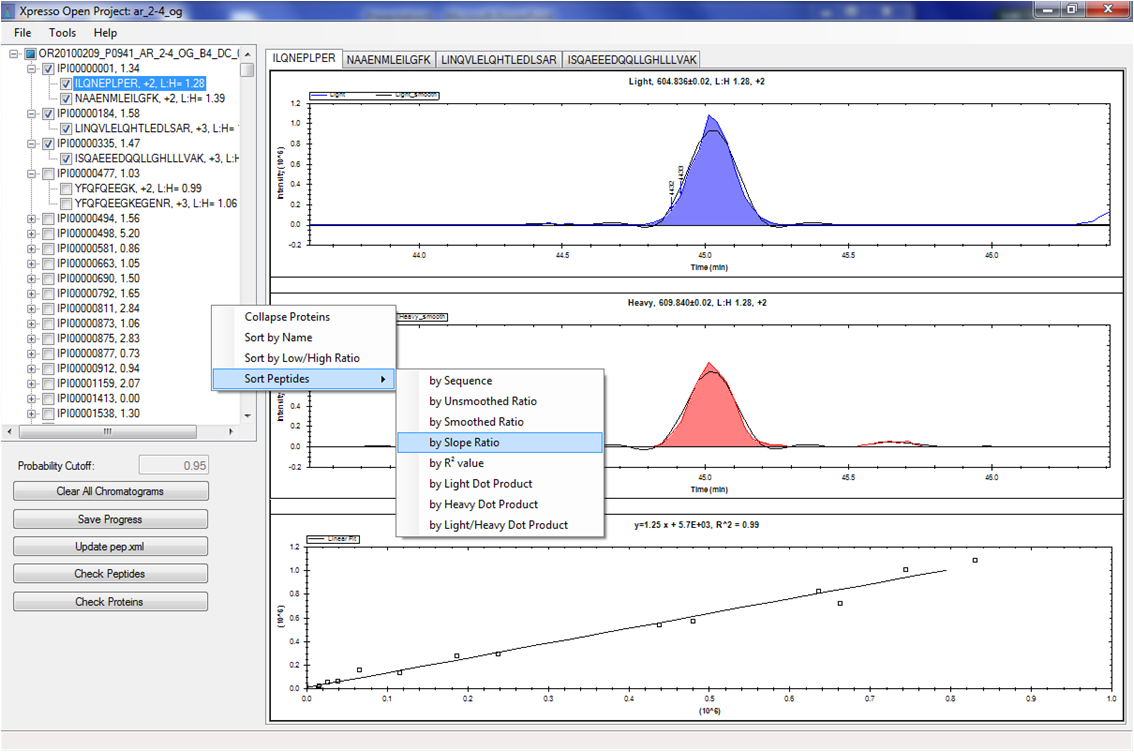
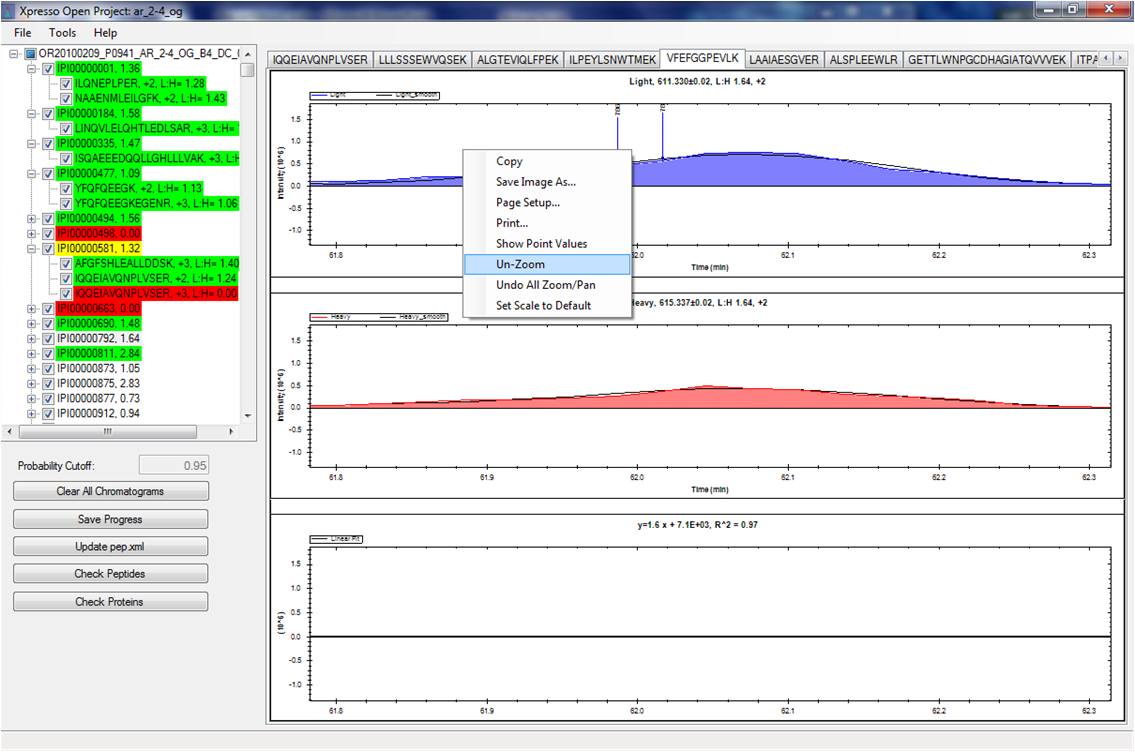
Individual or multiple peptides are selected using either the checkboxes in the upper left pane or by choosing the "Check Peptides" or "Check Proteins" buttons. In the peptide/protein upper left pane, individual peptides or all peptides from a protein can be selected by choosing the appropriate checkbox. Each set of light/heavy chromatogram will appear as tabs in the chromatogram pane. A right-mouse-click within the upper left pane brings up a dialog box which allows one to control the order in which the peptide/protein data are displayed. For example, one can use this dialog box to sort by ratio or sort by R2 value to assist in isolating entries of interest.
The "Check Peptides" button brings up a dialog box that allows one to select and check all peptides that pass specific criteria. These include light:heavy ratio, R2 value, dot product scores, etc. Combinations of selection critera are allowed. Once the criteria are chosen, all peptides meeting those critera are checked, chromatograms loaded in the tabbed chromatogram pane, and available for rapid curation.
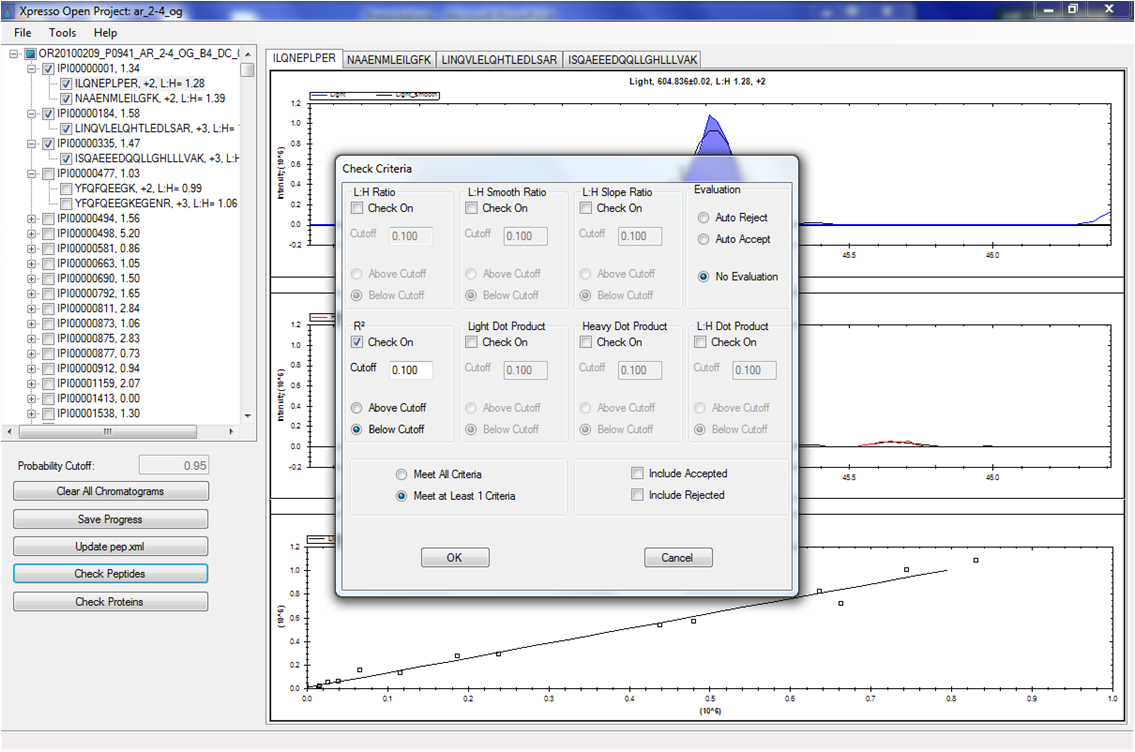
Note that XPRESSO places a limit (currently set to 100) on the total number of chromatogram tabs that it will load in the application.
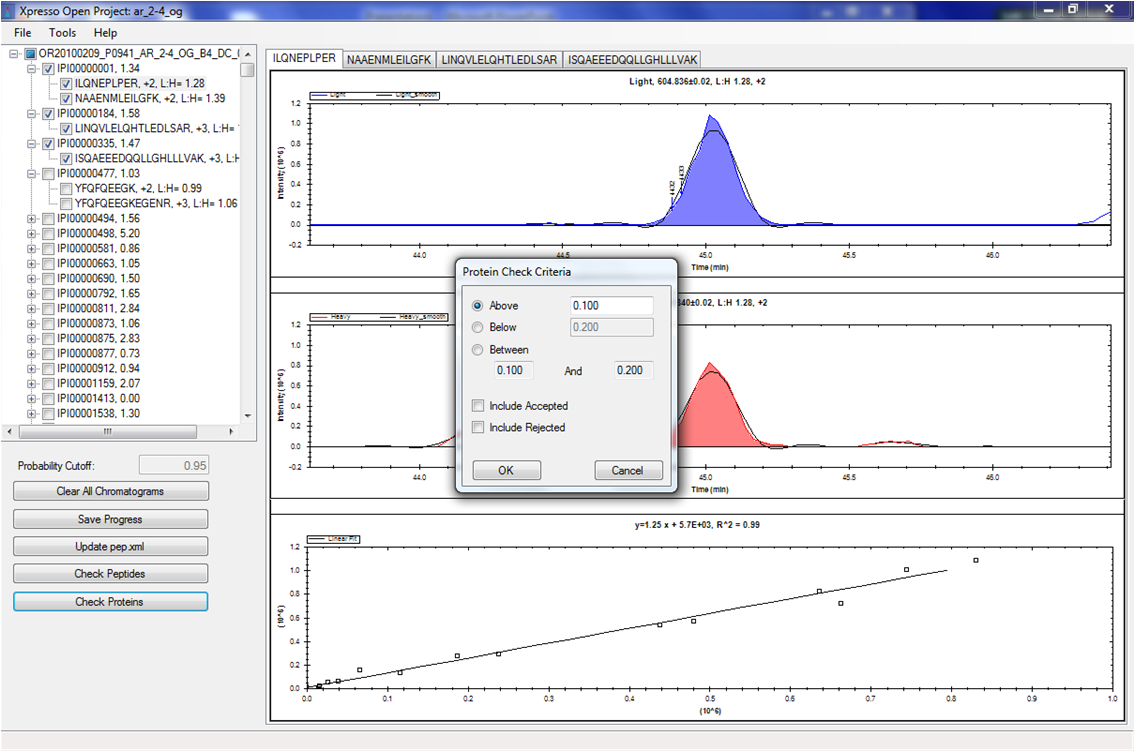
The "Check Proteins" button brings up a dialog that behaves similarly to the "Check Peptides" dialog. In the "Check Proteins" dialog, entries can be selected based on protein decimal ratio. Criteria of being above, below, or between a range of ratios can be specified and entries can be selected that either meet or do not meet the selection criteria.
Correcting, savings, rejecting.
Once a set of peptides has been selected and loaded into the chromatogram tabs, the data can be rapidly curated. The keys "W" and "E" will switch between tabs. The keys "A" and "V" will accept or reject an entry. Accepted entries are highlighted in green and rejected entries are highlighted in red in the protein/peptide list. To select/correct a different start/stop range for the chromatogram elution peak areas, drag the mouse over the area of interest. The light:heavy ratio listed in the head of the chromatograms is automatically updated and the correlation scatter plot is dynamically updated based on the selection. Any edited entries will not be written back to the pep.xml file unless they are "A"ccepted. In the peptide/protein list, accepted/validated entries are shaded green, rejected entries are shaded red, and proteins in conflict (containing both an accepted and rejected entry) are shaded yellow.
One can zoom in on the chromatogram plot by holding down the shift key and performing a mouse drag.
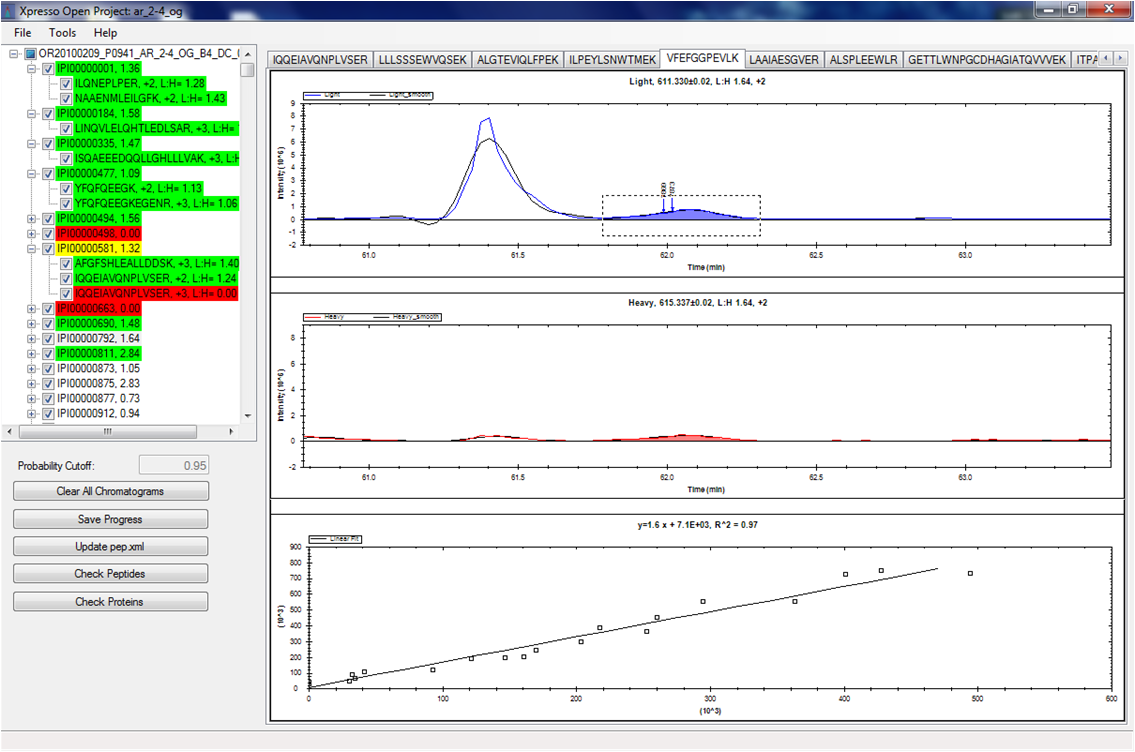
Zooming out is accomplished by selecting the Un-Zoom option that appears when one right-mouse-clicks on the plot. Options to save/print the chromatogram are also available in the right-mouse-click window.
The option to view the light and heavy chromatograms overlayed on the same plot, as opposed to separate stacked plots, is available. To choose this option, select the "Overlay Light/Heavy Chromatograms" option in the Tools menu.