Input data
Input files to XPRESSO are pepXML and mzXML files analyzed through the TPP pipeline. An interact.pep.xml file contains one or more LC-MS/MS runs that have been sequence database searched and then analyzed by XPRESS. This file and the corresponding mzXML files are the inputs to XPRESSO.
On the image to the right, 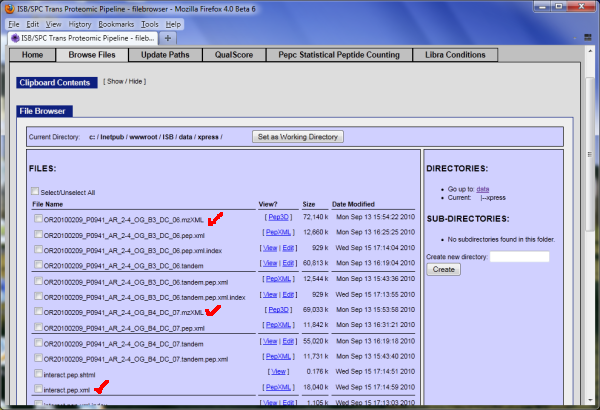 two Orbitrap runs were searched using X!Tandem, converted to pepXML, and analyzed through the TPP pipeline. The resulting files are listed in the TPP file browser. To state the obvious, please make sure you run XPRESS as XPRESSO curates quantitative results by reading the XPRESS elements in the pepXML file. By convention, files processed through the TPP have the name "interact*.pep.xml" for peptide/spectrum level results and "interact*.prot.xml" for protein level results. The files marked with a red checkbox (two mzXML and interact.pep.xml) are the input files necessary for XPRESSO.
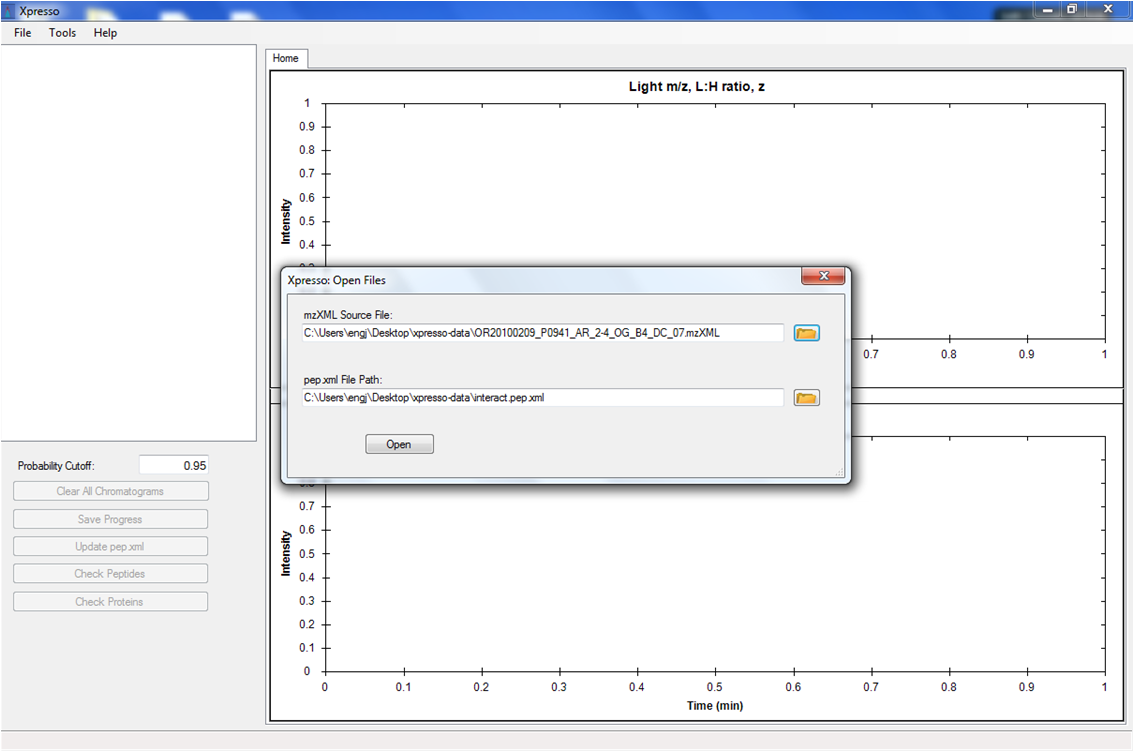
To open these files, go to the "File" menu and choose "Load datafiles". The following dialog box will appear in which you choose the mzXML files (select them all using a mulitple select shift-mouseclick) and the pep.xml file from the TPP. In the example below, only a single mzXML file was selected to correspond with the pep.xml. If you select multiple mzXML files for input, only one will appear in the source file list.
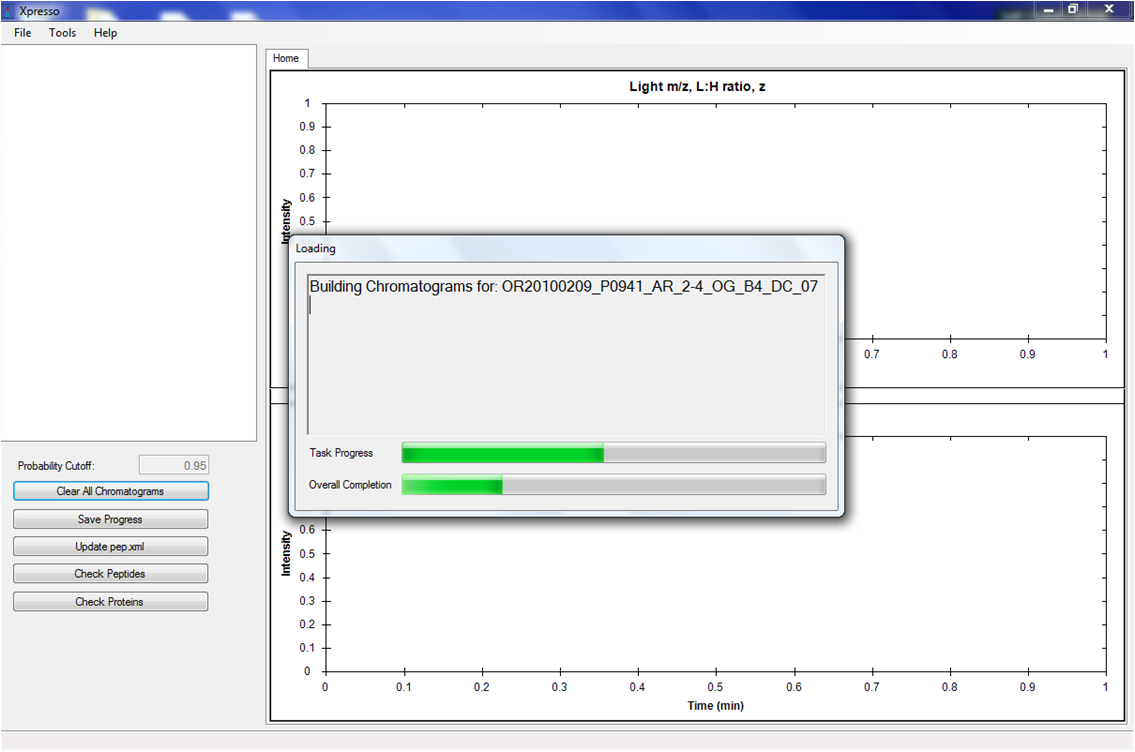
After files are selected and the "Open" button is pushed, XPRESSO will generate chromatograms for the data. Although this process has been optimized, it could take upwards of tens of minutes if you have a large dataset with many input files.
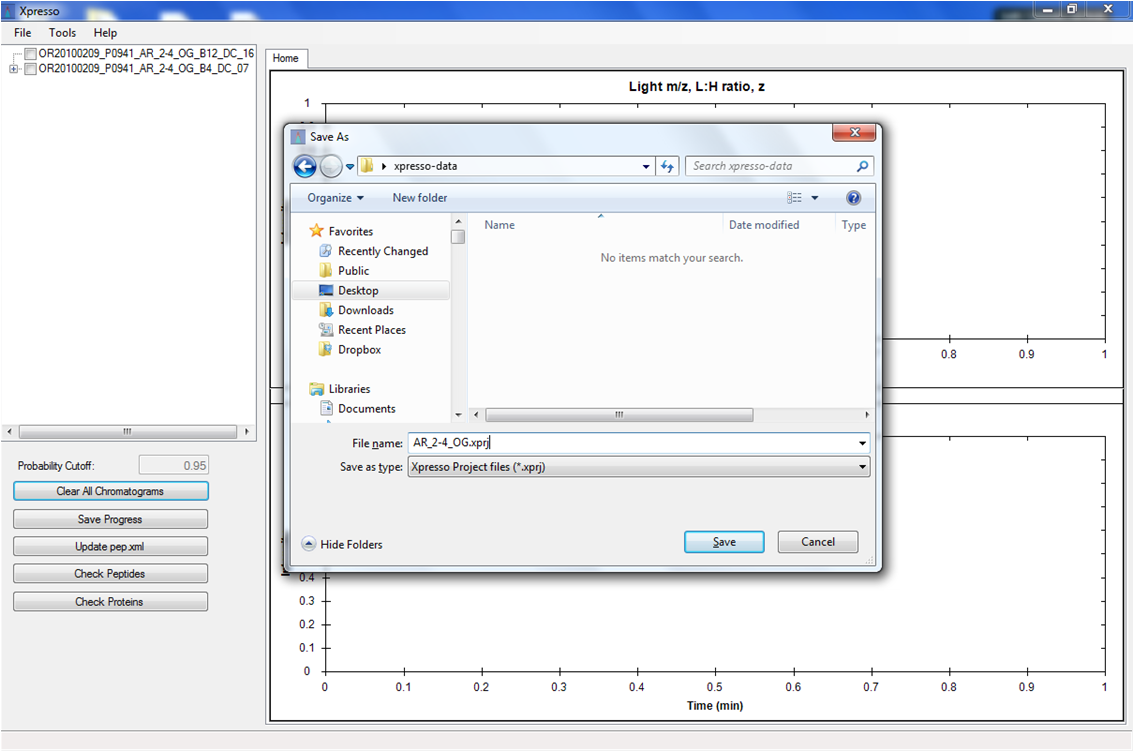
Once files are loaded, you will be prompted to save an XPRESSO project file. This project file stores all information associated with an XPRESS project including the underlying extracted chromatograms, edited/validate/rejected entries, etc. These results are stored in an intermediate format (sqlite). This allows one to save progress and come back to the data at a later date to resume analysis. Once all analysis are complete, you will update the corresponding pep.xml file. Until that happens, the XPRESSO project file is where all data are saved. So give your project file a unique name and save it in a convenient location.