Saving results
An XPRESSO project file (.xprj) was generated and saved at the conclusion of the initial load data step. In order to save intermediate progress, that project file can be overwritten or a new project file can be saved by clicking on the "Save Progress" button. This brings up the Save file dialogue box. At this point, you can save simply save the project with the same project file name it already has. Or you have the option of saving it to a different XPRESSO project file if you want to have multiple copies/versions of that project file.
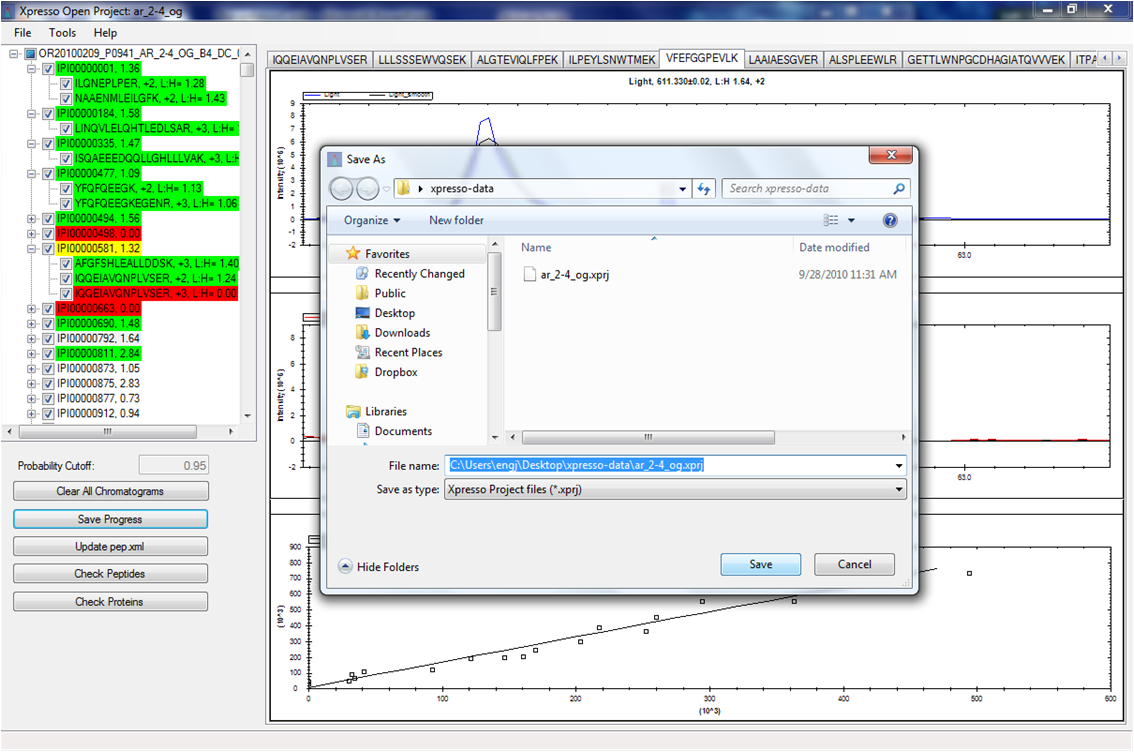
To re-load this project at a later date, simply choose the appropriate project by selecting "Load Project" from the "File" menu.
When all curation has been completed, one can export results back to the pep.xml file by choosing the "Update pep.xml" button. When this button is selected, a file dialog is opened. You can specify a new pep.xml file or choose an existing pep.xml to overwrite. This pep.xml file can be subsequently used in the TPP pipeline for downstream processing, such as running ProteinProphet to calculate protein ratios based on the curated peptide ratios.
The new pep.xml file file is ready to be processed by ProteinProphet in the TPP to perform protein inference as well as generate protein ratios based on the curated peptide ratios. At this time, the TPP GUI interface does not allow you to run ProteinProphet by itself so you must run on the command line. The command that you would run is "ProteinProphet.exe yourfile.pep.xml yourfile.prot.xml XPRESS" where yourfile is replaced by your own file name. There are many other ProteinProphet options that you might considering running also. They are ...
Show example of exporting results to tab delimited text if possible.